How to use the webservices of webPDF 7 with options
Minimum technical requirements
- Java version: 7
- webPDF version: 7
- wsclient version: 1

This example shows how to pass options to webPDF webservices. In addition to the well-known Converter webservice, it also uses the Toolbox webservice.
This tutorial is based on How to use the webservices of webPDF 7. If you have not worked through that article yet, start there first. The software requirements are the same.
Create the project and generate the required proxy classes
As described in the first tutorial, create a Java project in IntelliJ with the following options:
- Template:
Command Line App - Project name:
OptionExample - Project location:
.../OptionExample - Base package:
de.webpdf
Open the project view in IntelliJ. Then open a command prompt in the src folder and generate the proxy classes with these commands:
wsimport -Xnocompile -s . -p de.webpdf.schema.converter \
http://localhost:8080/webPDF/soap/converter?wsdl -extension

wsimport -Xnocompile -s . -p de.webpdf.schema.toolbox \
http://localhost:8080/webPDF/soap/toolbox?wsdl -extension
Remark:
The -p argument sets the target package for generated classes. This is required to avoid conflicts when classes would otherwise be generated into the same package.
The project is now created and the proxy classes are available.
Implement webservice requests for Converter and Toolbox
As in the first tutorial, insert all code into the main method of class Main.
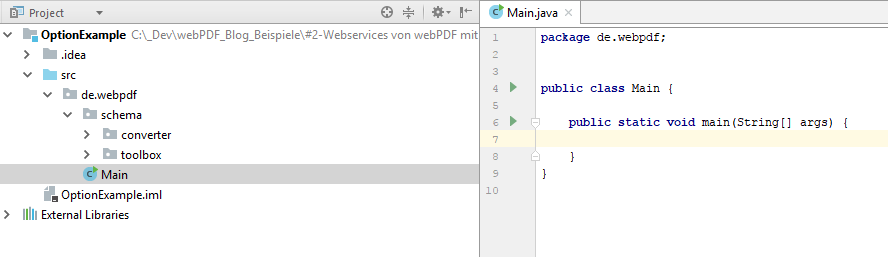
Now start creating the method content:
URL converterUrl;
URL toolboxUrl;

try {
  // initialize URLs
} catch (MalformedURLException ex) {
  // error handling
}

ConverterService converterService = new ConverterService(converterUrl);
Converter converter = converterService.getConverterPort();

de.webpdf.schema.converter.Operation converterOperation =
    new de.webpdf.schema.converter.Operation();
converterOperation.setConverter(new ConverterType());

// Page settings for conversion
converterOperation.getConverter().setPage(new PageType());
converterOperation.getConverter().getPage().setWidth(150);

// PDF/A settings for conversion
converterOperation.getConverter().setPdfa(new PdfaType());
converterOperation.getConverter().getPdfa().setConvert(new PdfaType.Convert());
converterOperation.getConverter().getPdfa().getConvert().setLevel("3b");

DataHandler inputHandler = new DataHandler(
    new FileDataSource(new File("src/de/webpdf/schema/toolbox/Toolbox.java")));
DataHandler resultHandler;

try {
  // call converter webservice
} catch (de.webpdf.schema.converter.WebserviceException | IOException ex) {
  // error handling
}
This part is mostly identical to the previous tutorial. The main differences are the converted input file and additional options in the Operation instance.
Adding a PdfaType object to the operation
converterOperation.getConverter().setPdfa(new PdfaType());
ensures the document is converted to PDF/A during conversion. Page settings are adjusted by adding PageType.
All required parameters are documented in the webPDF user manual under Programming -> Webservice Parameters. In addition, a second URL is created for the Toolbox endpoint.
Remark:
webPDF also provides a dedicated PDF/A webservice. The Converter webservice does not route through it; PDF/A conversion is triggered directly within webPDF.
From the next section onward, the Toolbox webservice is used:
resultHandler = null;

ToolboxService toolboxService = new ToolboxService(toolboxUrl);
Toolbox toolbox = toolboxService.getToolboxPort();

de.webpdf.schema.toolbox.Operation toolboxOperation =
    new de.webpdf.schema.toolbox.Operation();

// Rotation settings for toolbox operation
RotateType rotateType = new RotateType();
rotateType.setDegrees(180);

// Additional type elements can be added here as needed
toolboxOperation.getAnnotationOrAttachmentOrDelete().add(rotateType);

try {
  // call toolbox webservice
} catch (de.webpdf.schema.toolbox.WebserviceException | IOException ex) {
  // error handling
}
The created URL initializes ToolboxService. The endpoint is then retrieved with getToolboxPort(), just as with the converter service.
resultHandler is reset to null so it no longer points to the converter result. The Toolbox operation uses a base list that you can access through toolboxOperation.getAnnotationOrAttachmentOrDelete(). You can add all documented toolbox types there, for example AnnotationType, AttachmentType, and others.
In this example, a RotateType with 180° is used. Multiple type elements can be added as needed.
Execution is similar to the converter call, with one difference: execute receives a URL instead of a DataHandler.
After running the file, two PDF files should exist in your project folder:

- The conversion result
- The processed result from the
Toolboxwebservice
Using webservice options, you converted a Java file with Converter into a 150 mm wide PDF document (PDF/A compliant) and then rotated it by 180° with Toolbox.
Appendix
Required imports for the class:
import de.webpdf.schema.converter.Converter;
import de.webpdf.schema.converter.ConverterService;
import de.webpdf.schema.converter.ConverterType;
import de.webpdf.schema.converter.PageType;
import de.webpdf.schema.converter.PdfaType;
import de.webpdf.schema.toolbox.RotateType;
import de.webpdf.schema.toolbox.Toolbox;
import de.webpdf.schema.toolbox.ToolboxService;
import javax.activation.DataHandler;
import javax.activation.FileDataSource;
import java.io.File;
import java.io.FileOutputStream;
import java.io.IOException;
import java.net.MalformedURLException;
import java.net.URL;
Continue with part 3 of our technology series on webservices.